

First Steps

Before you do switch on the eLABin1
- Check the package contents.
The eLAbin1 is ready for operation
- Turn on the eLABin1.
You can see the Android GUI
-
After the operating system loads, press the application icon eLABin1
 .
.
-
Wait for the eLABin1 to load the instruments on the screen as shown in Figure 1 .
Figure 1. eLABin1 instruments 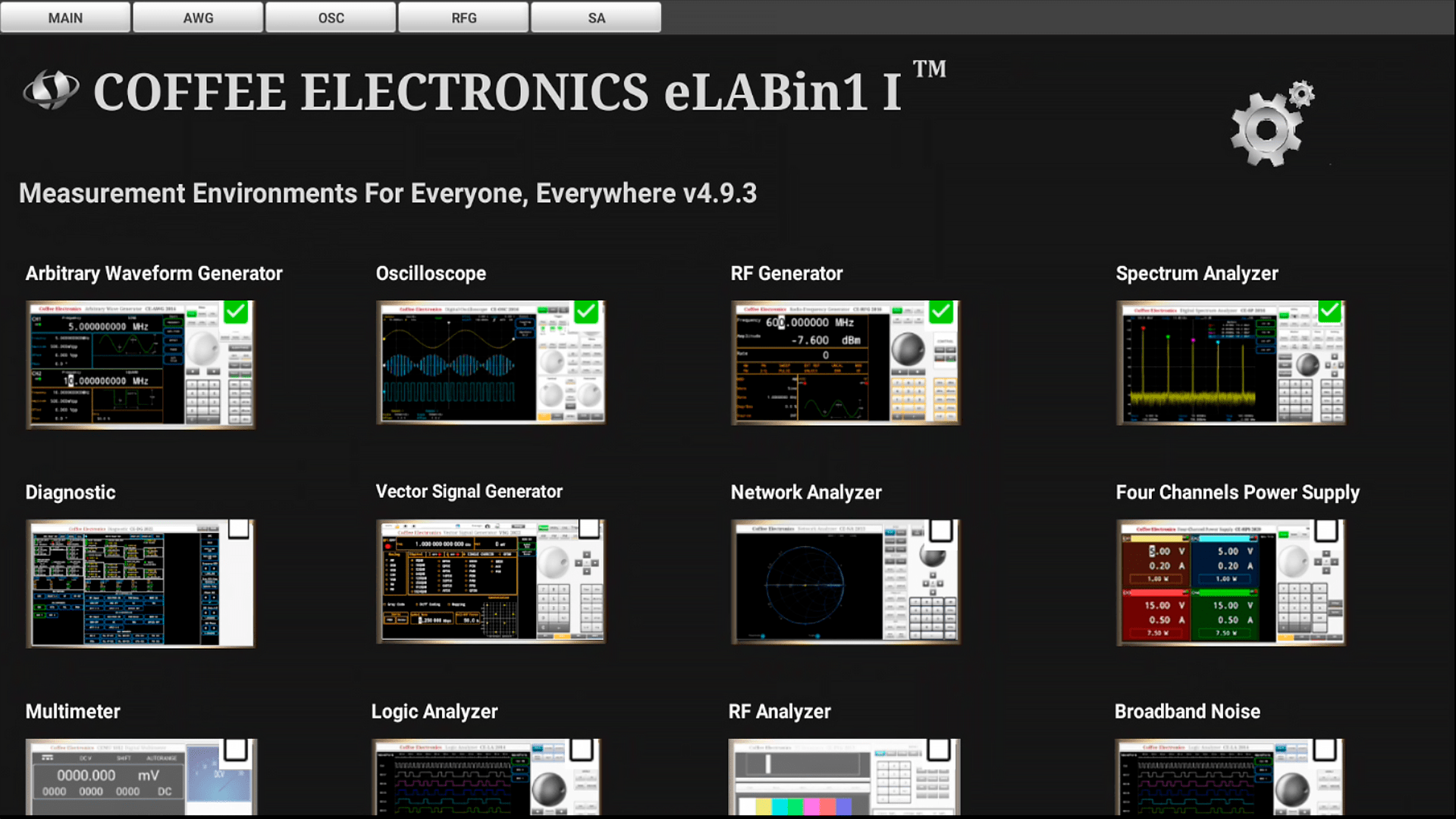
-
Select the instruments you want to use. The name of the choose devices will appear in tabs at the top of the screen as
shown in Figure 2 .
Figure 2. eLABin1 instruments - instruments selected 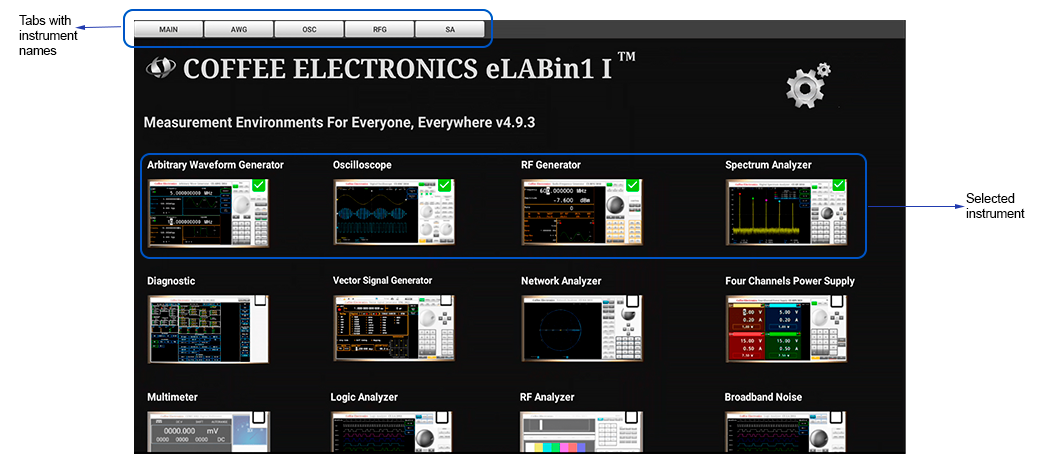
-
Clicking on the tab with the name of the device you want to use, the GUI of that device will be displayed, and you can
start using it. Figure 3 shows the deployed AWG GUI as an example.
Figure 3. eLABin1 AWG GUI 