

Main Screen

Main Screen Overview

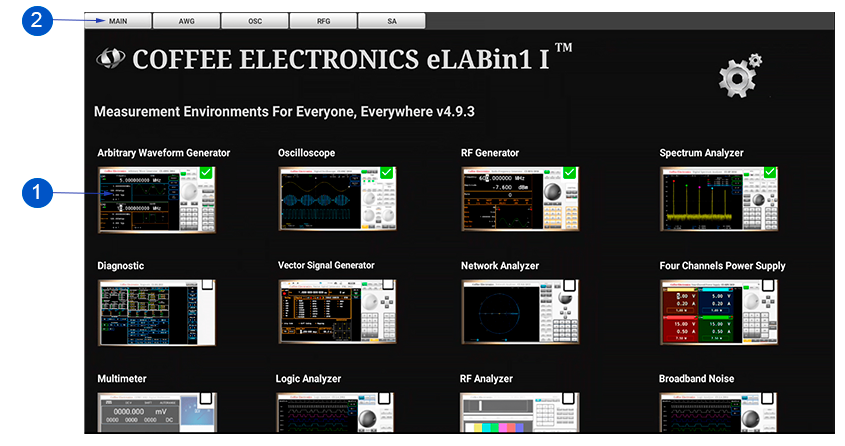
When the eLABin1 is turned on, after loading the startup configurations, the main screen is displayed where actions can be carried out such as: selecting the instruments with which to work and changing general configuration aspects of the eLABin1. The components that make up the main screen and how to use its functions are described below.
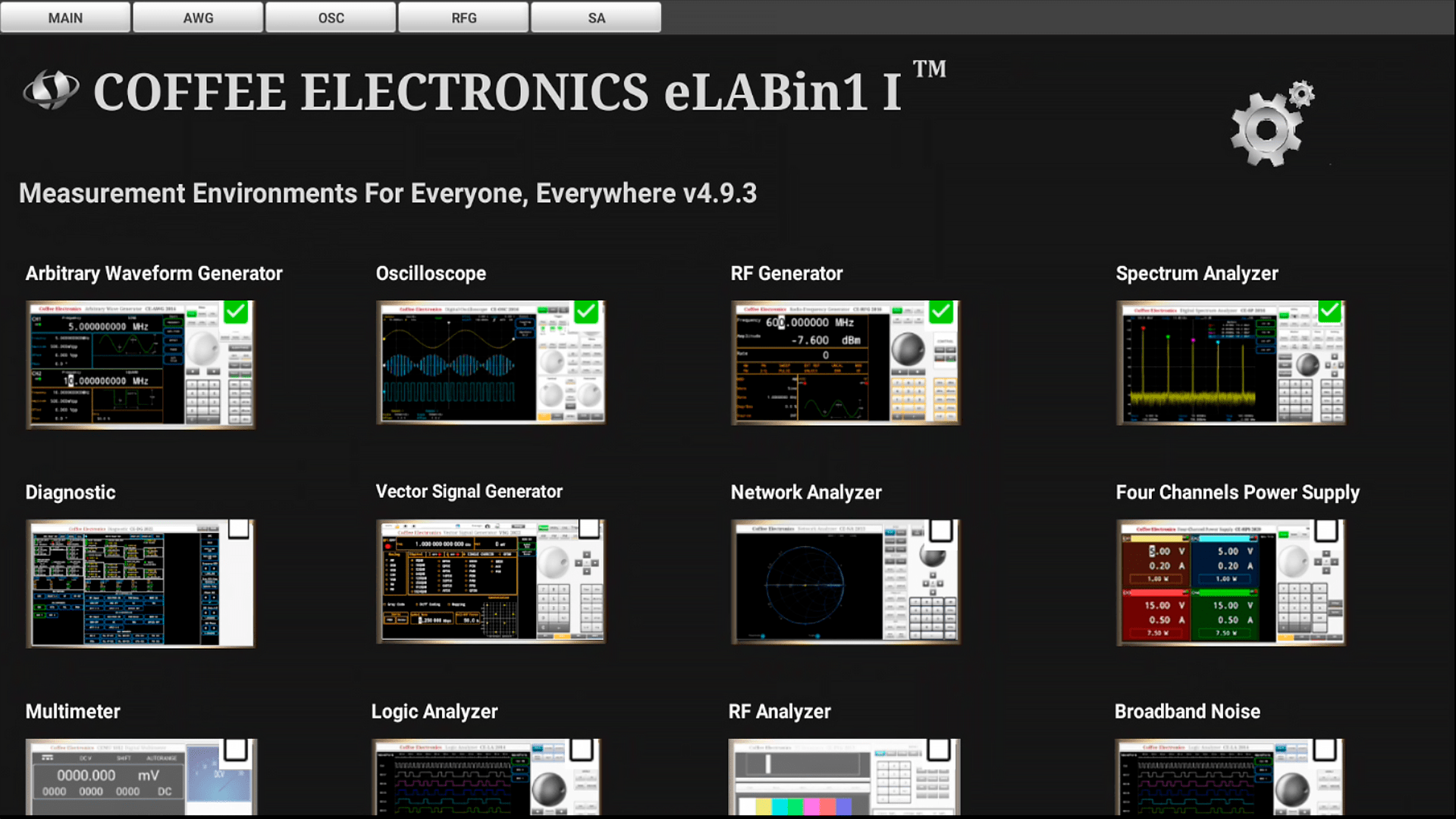
Instrument Tabs
| Instrument Tabs | Button | Function | Button | Function |
|---|---|---|---|---|

|

|
It goes to the main screen Figure 2 from any of the instruments. | 
|
It goes to the Spectrum Analyzer interface from any other instrument. |

|
It goes to the Arbitrary Waveform Generator interface from any other instrument. |

|
It goes to the Radio Frequency Generator interface from any other instrument. | |

|
It goes to the Oscilloscope interface from any other instrument. | 
|
It goes to the four channel power supply interface from any other instrument. |
Settings Menu Button

|
Go to the general configuration menu of eLABin1. |
Instrument Selection Button
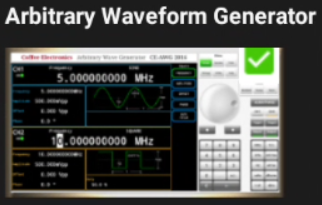
|
Activates the Arbitrary Waveform Generator. |
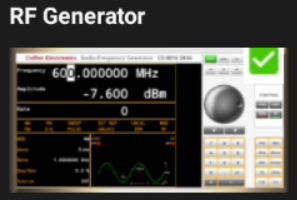
|
Activates the Radio Frequency Generator. |
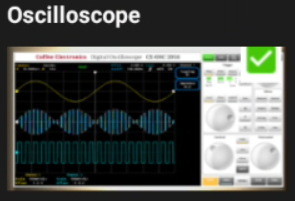
|
Activates the Oscilloscope. |
|
Activates the Spectrum Analyzer. |
Main Screen Functions
 |
|
To select the instruments to be used, it is necessary to click on the instrument selection button that you want to activate or deactivate, when the box is checked if the instrument is active and the tab with the instrument name will appear in the instrument tabs panel at the top of the main screen. By clicking on any of the active instrument tabs, the display will automatically switch to the interface of the selected instrument. The tabs for each instrument appear and disappear from the top of the main screen as each one is activated or deactivated.
 |
|
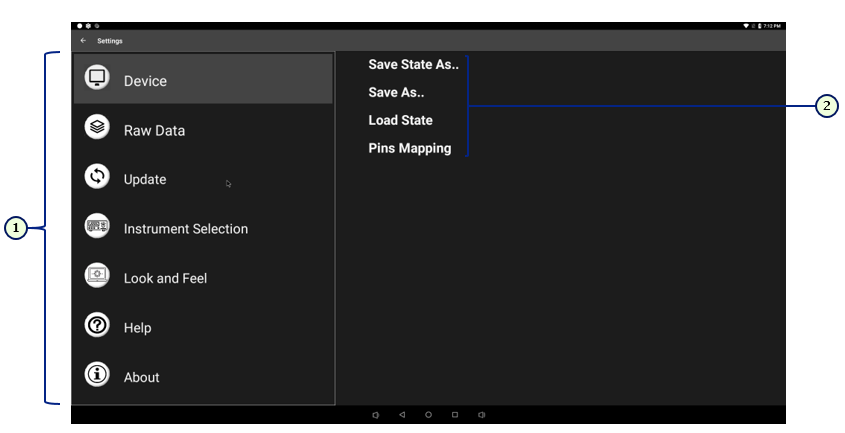
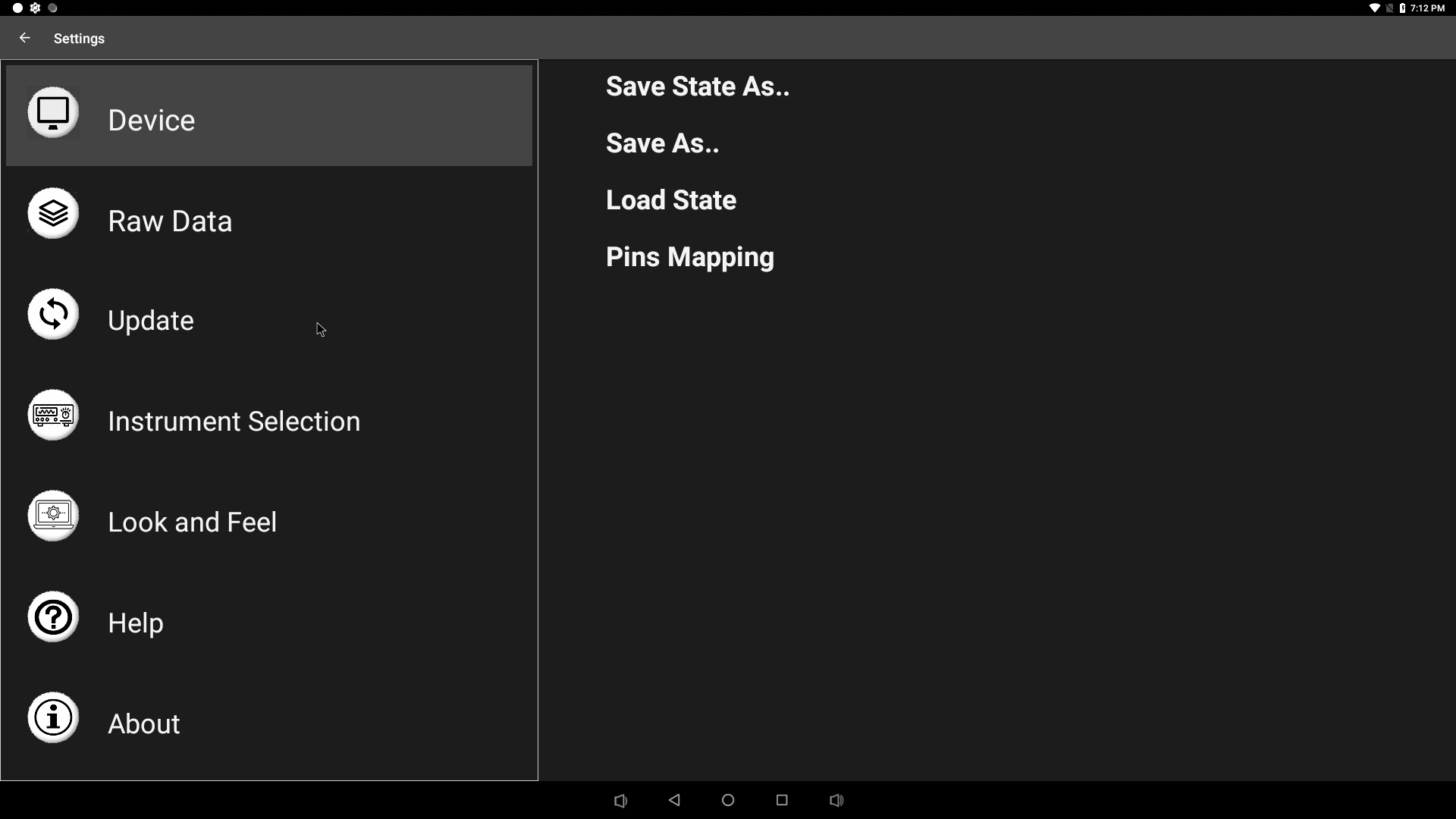
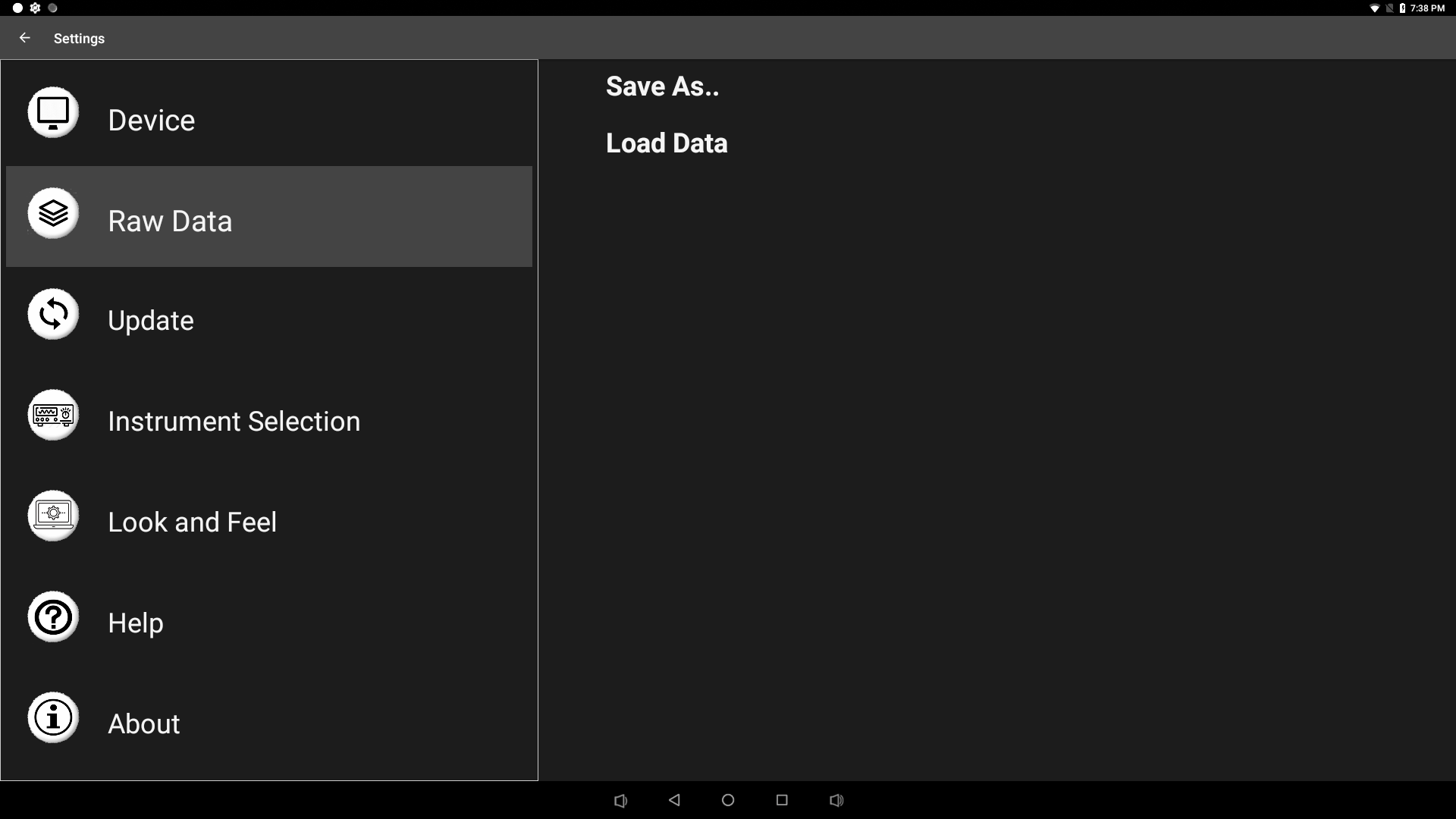
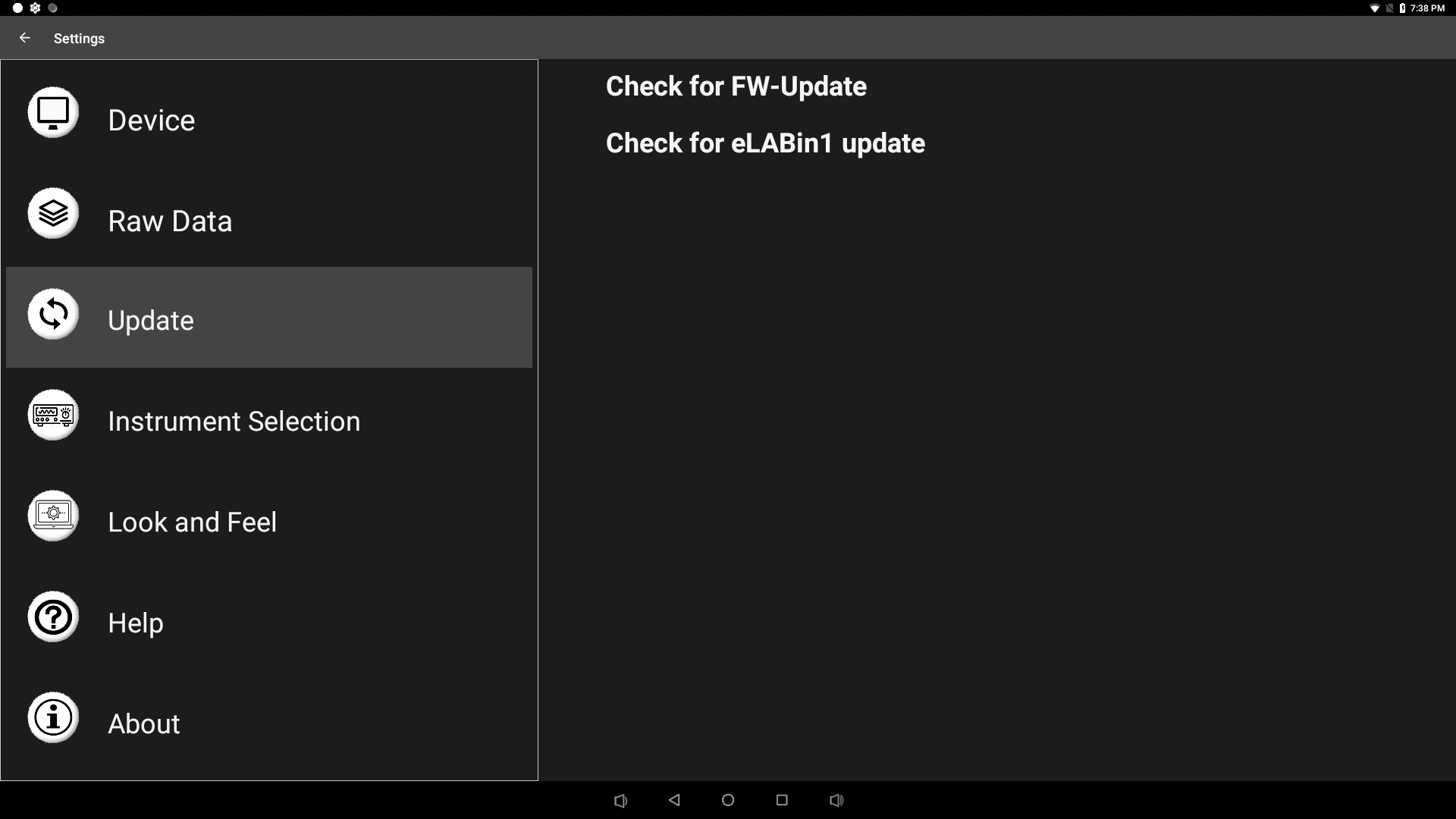
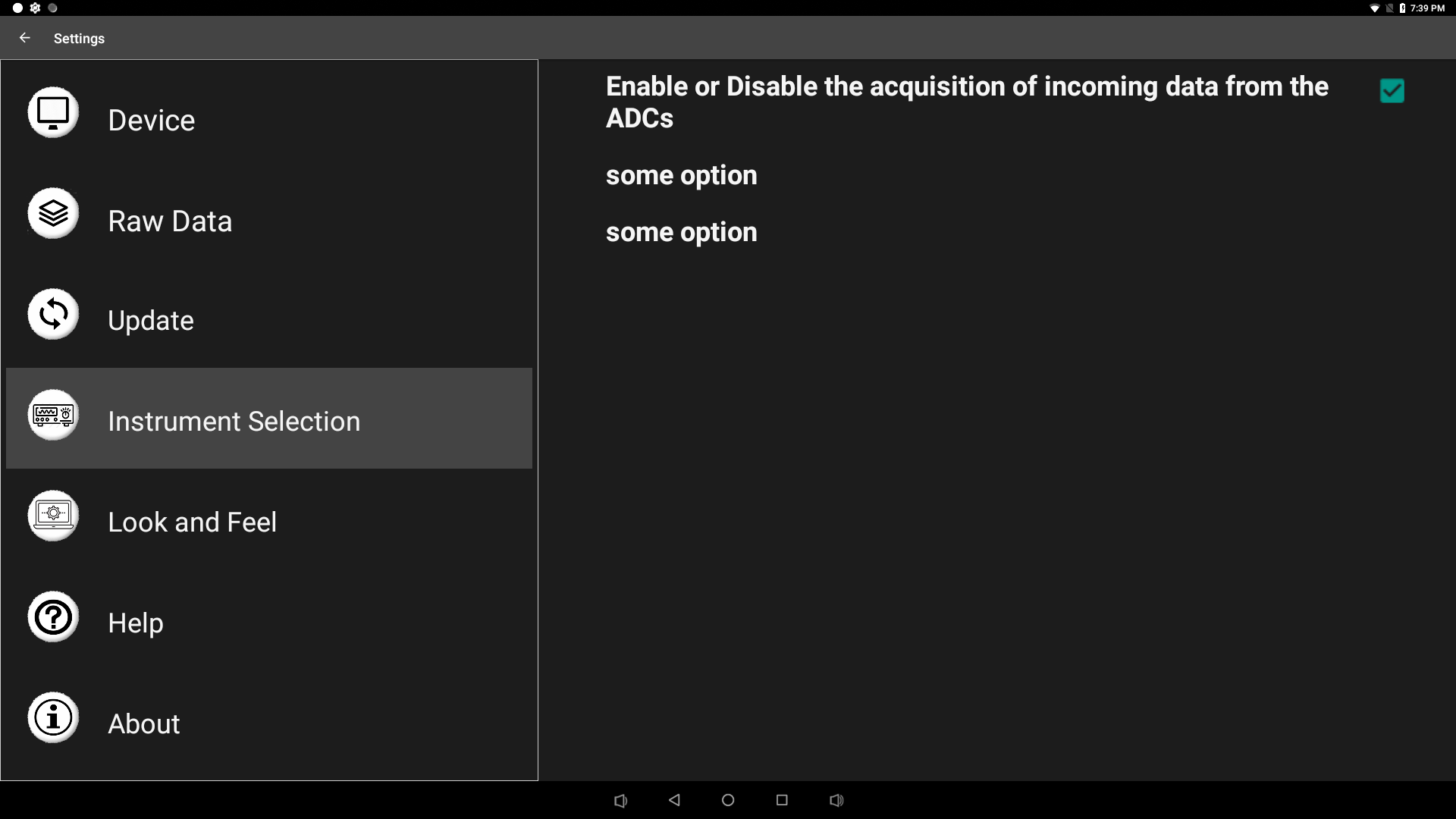
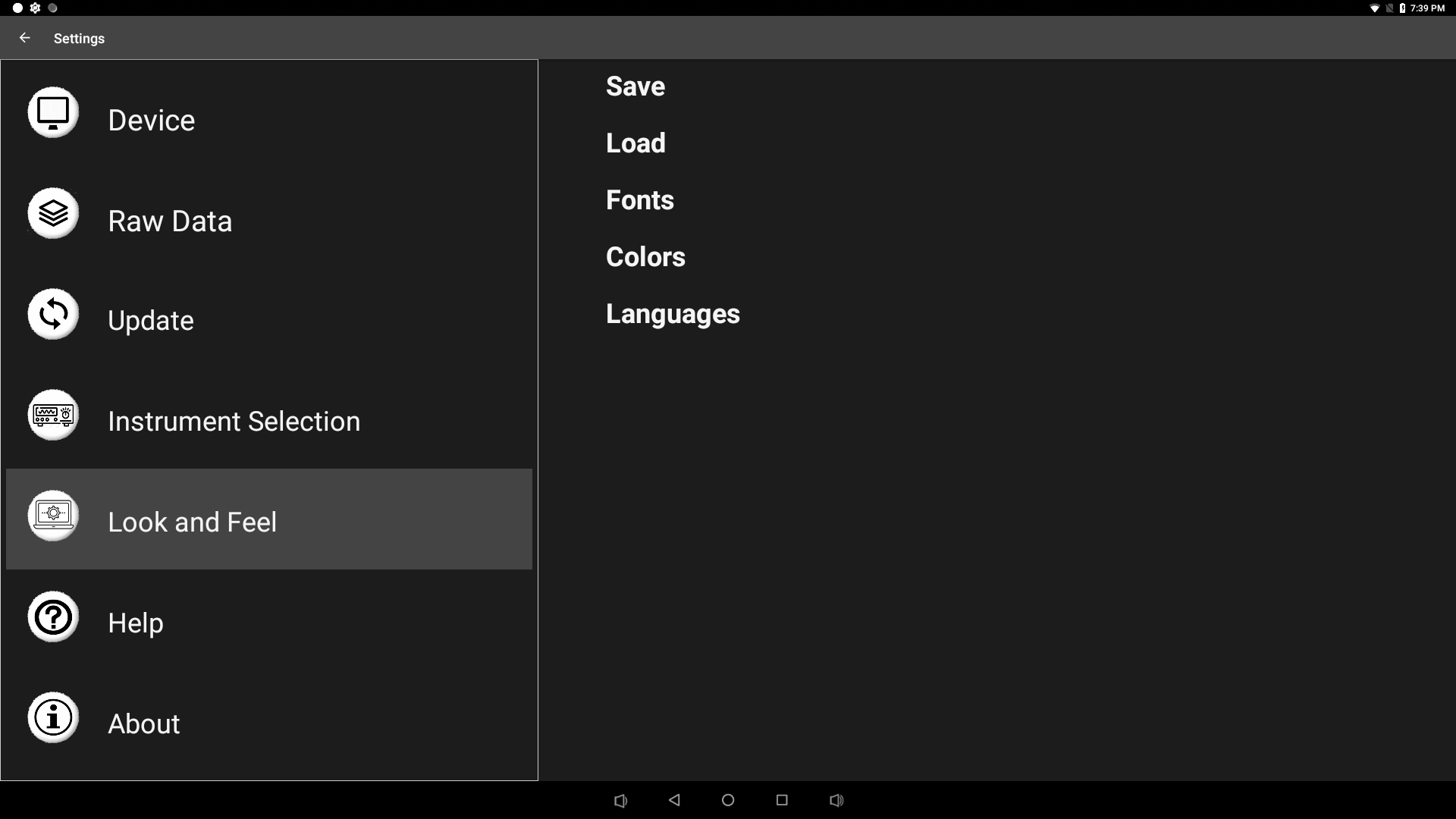
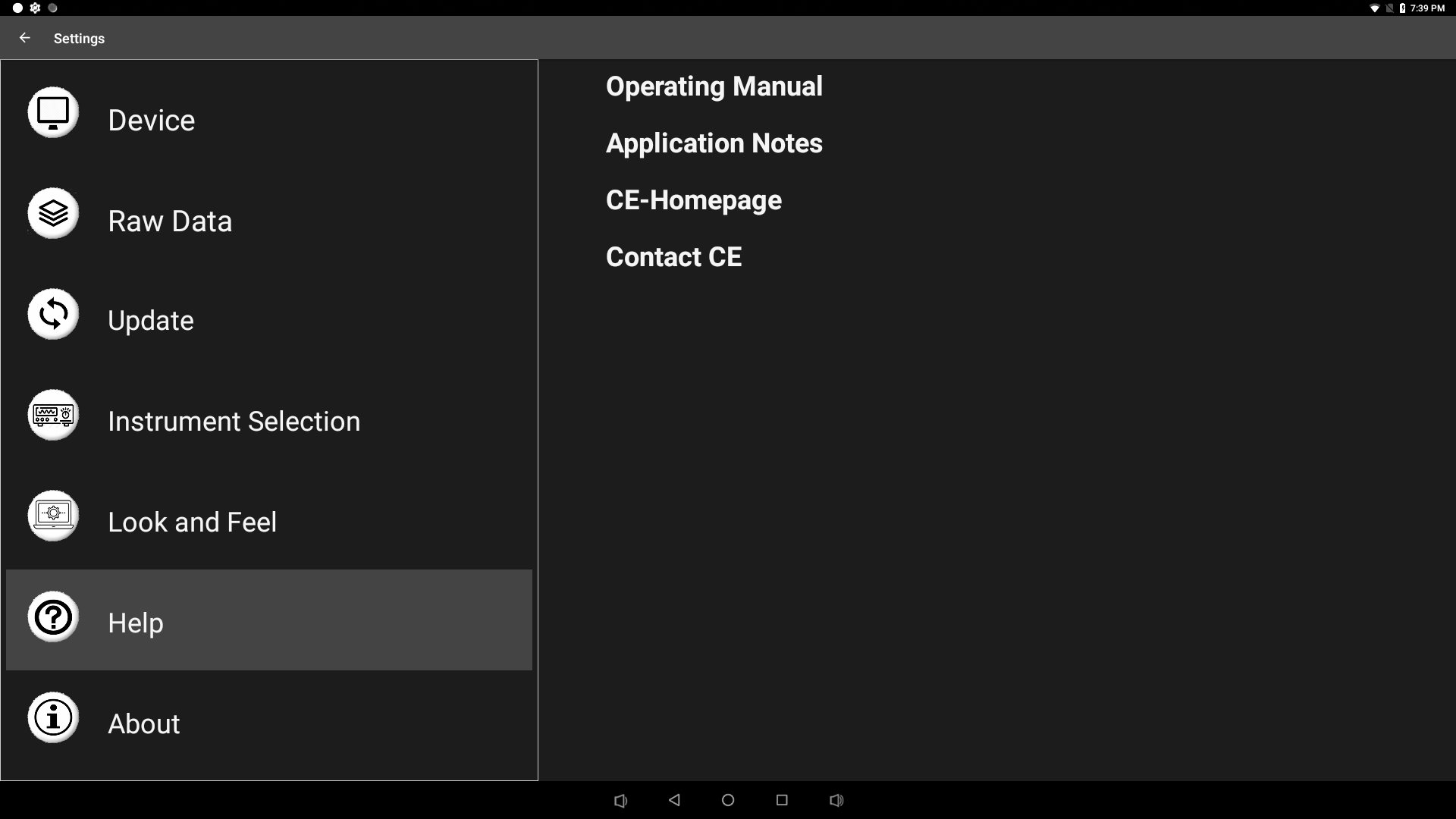
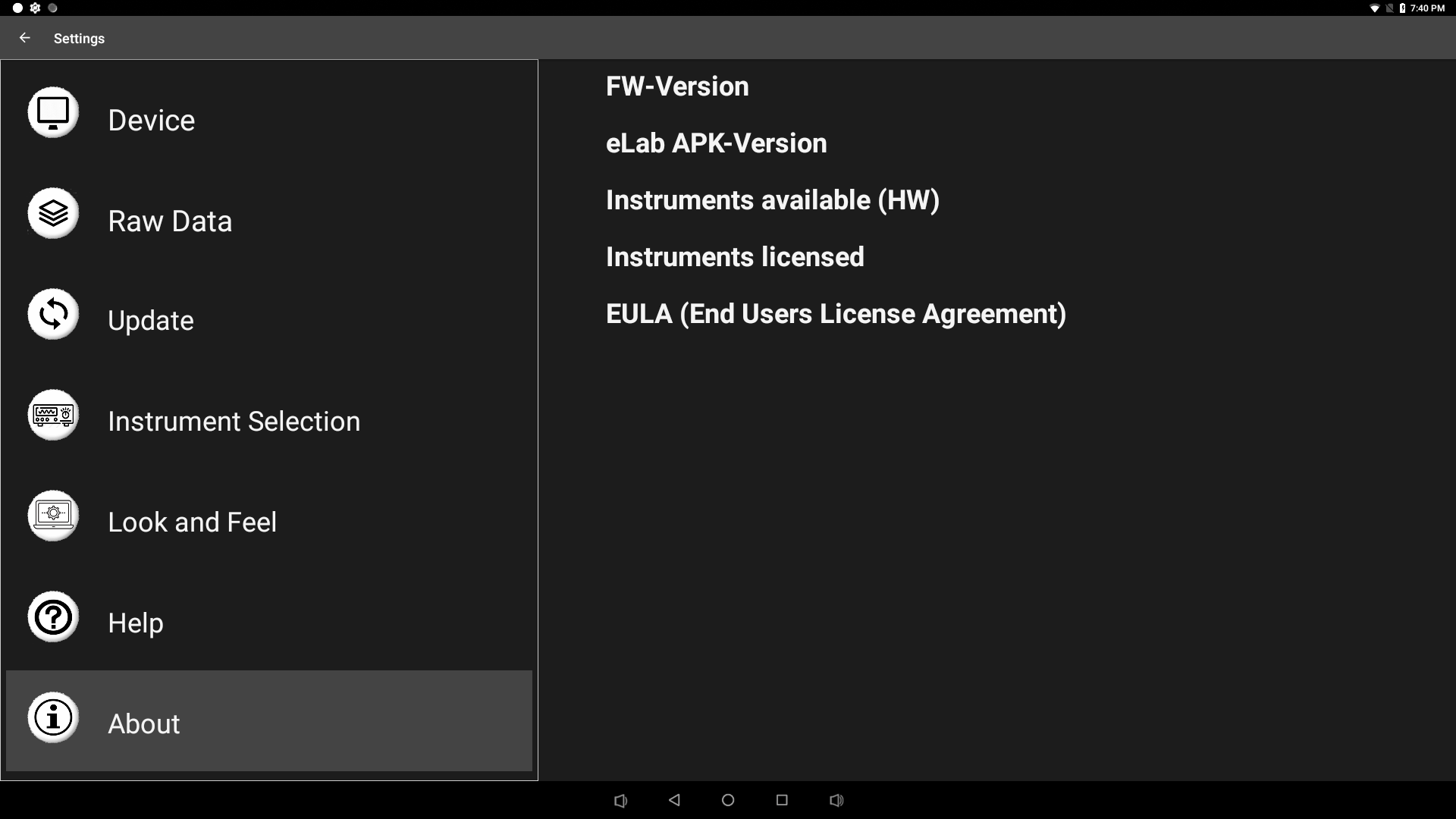
To display the eLABin1 general settings menu, press the button on the main screen
with each of the configuration options, which can be selected by clicking on the
button for each one of them.
 |
Description The program requires the installation of Python3.6 or higher on a host device (e.g. Windows PC, Linux Workstation) or directly on the eLABin1 (which is not explained here in further detail). After extracting the zip-package and installing additional python-libraries if needed the program can be started The program requires the installation of Python3.6 or higher on a host device (e.g. Windows PC, Linux Workstation) or directly on the eLABin1 (which is not explained here in further detail). After extracting the zip-package and installing additional python-libraries if needed the program can be started |
 |
Description The program requires the installation of Python3.6 or higher on a host device (e.g. Windows PC, Linux Workstation) or directly on the eLABin1 (which is not explained here in further detail). After extracting the zip-package and installing additional python-libraries if needed the program can be started The program requires the installation of Python3.6 or higher on a host device (e.g. Windows PC, Linux Workstation) or directly on the eLABin1 (which is not explained here in further detail). After extracting the zip-package and installing additional python-libraries if needed the program can be started |
 |
Description The program requires the installation of Python3.6 or higher on a host device (e.g. Windows PC, Linux Workstation) or directly on the eLABin1 (which is not explained here in further detail). After extracting the zip-package and installing additional python-libraries if needed the program can be started The program requires the installation of Python3.6 or higher on a host device (e.g. Windows PC, Linux Workstation) or directly on the eLABin1 (which is not explained here in further detail). After extracting the zip-package and installing additional python-libraries if needed the program can be started |
 |
Description The program requires the installation of Python 3.6 or higher on a host device (e.g. Windows PC, Linux Workstation) or directly on the eLABin1 (which is not explained here in further detail). After extracting the zip-package and installing additional python-libraries if needed the program can be started The program requires the installation of Python 3.6 or higher on a host device (e.g. Windows PC, Linux Workstation) or directly on the eLABin1 (which is not explained here in further detail). After extracting the zip-package and installing additional Python-libraries if needed the program can be started |
 |
Description The program requires the installation of Python 3.6 or higher on a host device (e.g. Windows PC, Linux Workstation) or directly on the eLABin1 (which is not explained here in further detail). After extracting the zip-package and installing additional python-libraries if needed the program can be started The program requires the installation of Python 3.6 or higher on a host device (e.g. Windows PC, Linux Workstation) or directly on the eLABin1 (which is not explained here in further detail). After extracting the zip-package and installing additional Python-libraries if needed the program can be started |
 |
Description The program requires the installation of Python 3.6 or higher on a host device (e.g. Windows PC, Linux Workstation) or directly on the eLABin1 (which is not explained here in further detail). After extracting the zip-package and installing additional python-libraries if needed the program can be started The program requires the installation of Python 3.6 or higher on a host device (e.g. Windows PC, Linux Workstation) or directly on the eLABin1 (which is not explained here in further detail). After extracting the zip-package and installing additional python-libraries if needed the program can be started |
 |
Description The program requires the installation of Python3.6 or higher on a host device (e.g. Windows PC, Linux Workstation) or directly on the eLABin1 (which is not explained here in further detail). After extracting the zip-package and installing additional python-libraries if needed the program can be started The program requires the installation of Python3.6 or higher on a host device (e.g. Windows PC, Linux Workstation) or directly on the eLABin1 (which is not explained here in further detail). After extracting the zip-package and installing additional Python-libraries if needed the program can be started |